
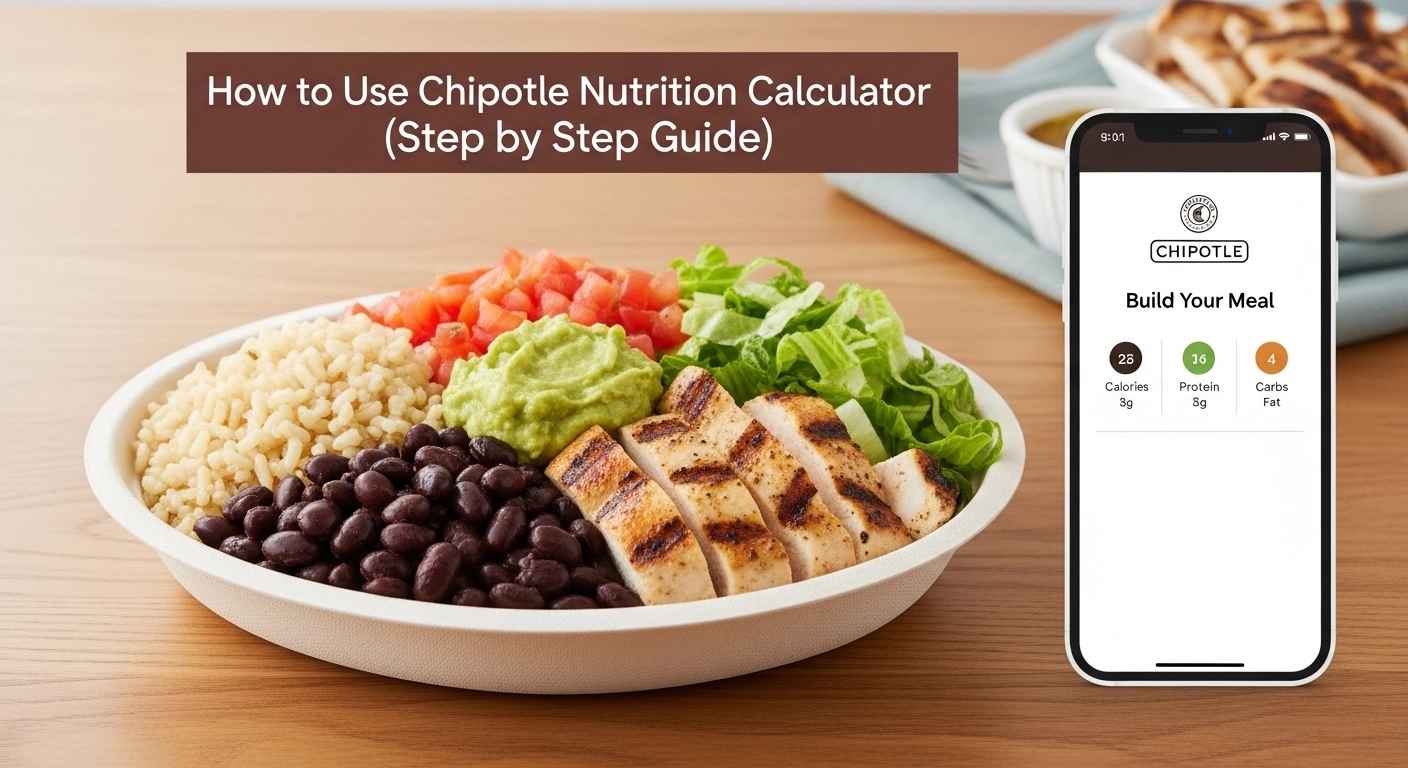
How to Use Chipotle Nutrition Calculator (Step-by-Step Guide)
Introduction
Many people enjoy eating at Chipotle, but they often feel confused about how many calories or nutrients are in their meal. Some want to lose weight, some want to eat healthy, and others just want to track what they are eating. But without the right tool, it becomes hard to understand what is actually inside your food.
This is where the Chipotle Nutrition Calculator becomes very helpful. It is a simple tool that helps you check calories, protein, carbs, and fat in your meal. In this guide, you will learn step by step how to use the calculator easily and make better, healthier food choices without confusion.
Table of Contents
Common Problems When Using Chipotle Nutrition Calculator
Many people struggle with Chipotle because it is easy to eat more calories than they think. A simple bowl with rice, beans, cheese, sour cream, and extra guac can easily go over 1,000 calories without you noticing. This can make weight loss or healthy eating harder.
Here are some real problems people face:
- They don’t know how many calories are in their favorite Chipotle meal.
- They feel confused by all the options (rice, beans, salsas, toppings) and don’t know what to choose.
- They think everything at Chipotle is “healthy” and are surprised when the calories are high.
- They track their food but don’t know how to use the nutrition calculator correctly.
- They want to follow a special diet (like keto, low‑carb, or for diabetes) but don’t know how to check the numbers.
These problems make it hard to enjoy Chipotle and still reach health or fitness goals.
How to Use Chipotle Nutrition Calculator Step by Step
Here is a simple, step‑by‑step guide anyone can follow. Think of it like building your meal in a game, but you can see the numbers before you order.
Open the Calculator Page
Go to the Chipotle Nutrition Calculator page. This is usually on Chipotle’s official website or on a trusted nutrition‑tracking site that offers a Chipotle calculator. Look for a title like “Chipotle Nutrition Calculator” or “Build Your Own Meal.”
Once you open the page, you will see pictures or buttons for different types of meals: bowl, burrito, taco, salad, quesadilla, etc. This is your starting point.
Choose Your Base
Click on the base you want:
- Bowl
- Burrito
- Salad
- Tacos
- Quesadilla
Each base has a different starting calorie and macro count. For example, a bowl is usually lighter than a burrito, and a salad is often the lowest in calories. Choose the base that fits your goal (for example, a salad if you want fewer calories).
Pick Your Protein
Next, choose your protein:
- Chicken
- Steak
- Carnitas
- Barbecue brisket
- Sofritas (for vegans)
The calculator will show how many calories and grams of protein each option adds. If you want more protein with fewer calories, grilled chicken is usually a good choice. If you want more fat, options like carnitas or brisket may be higher.
Click on your protein and notice how the total numbers change on the screen.
Choose Rice and Beans
Now choose rice and beans:
- White rice
- Brown rice
- Refried beans
- Black beans
- Pinto beans
Rice adds more carbohydrates and calories. If you want fewer carbs, you can skip rice or pick a smaller portion. Beans add protein and fiber, which can help you feel full. The calculator will show you how much each choice adds.
Pick the combo that fits your plan.
For example:
- Brown rice + black beans = more fiber and slower‑digesting carbs.
- No rice + extra beans = lower in calories and carbs.
Add Salsas and Toppings
Now comes the fun part: salsas, cheese, sour cream, guac, and more.
- Mild salsa
- Tomatillo‑green chili salsa
- Roasted chili‑corn salsa
- Tomatillo-red chili salsa
- Fajita vegetables
- Cheese
- Sour cream
- Guacamole
Each topping adds calories, fat, and sometimes carbs. The nutrition calculator will show you this in real time.
For example:
- Sour cream and cheese add more calories and fat.
- Guacamole adds healthy fats but also more calories.
- Extra salsa adds flavor with very few calories.
Click on the toppings you normally add and watch how the totals change. If the calories go too high, you can remove or reduce one item (for example, “half guac” or “no cheese”).
Review the Total Nutrition
At the bottom of the calculator, you will see the total nutrition:
- Calories
- Total fat
- Saturated fat
- Cholesterol
- Sodium
- Carbohydrates
- Fiber
- Sugar
- Protein
Read these numbers and compare them with your daily goals. For example, if you are trying to stay under 1,000 calories per meal, check if your design fits that limit. If not, adjust your choices (like less rice, smaller portions, or fewer toppings).
You can also save your favorite meal in your notes or screenshots so you can order it the same way every time.
Tips to Get Accurate Results from Chipotle Nutrition Calculator
To get the most out of the Chipotle Nutrition Calculator, keep these simple tips in mind:
- The “Side” Trick: If you aren’t sure about an ingredient, look at the nutrition for it “on the side.” This helps you control how much you actually pour onto your bowl.
- Check the Sodium: Calories aren’t the only thing that matters. If you feel puffy after eating, use the calculator to see which salsas have the most salt (sodium).
- Compare Meals: Try building two different bowls. You might find that a Salad with extra steak is healthier for your goals than a Burrito with rice.
- Save Your Favorites: If you find a “perfect” healthy meal, take a screenshot of the calculator results so you remember exactly what to order next time.
Write down your “go‑to” Chipotle meal once you find one that fits your goals. This makes it easy to repeat without guessing.
Benefits of Using Chipotle Nutrition Calculator
Why should you spend a few minutes using this tool? Here is why it helps:
- Stay on Track: If you are trying to lose weight or build muscle, you need to know your numbers. This tool does the math for you.
- Peace of Mind: You won’t have to feel guilty after eating because you already knew exactly what was in your food.
- Better Choices: When you see the numbers, you might decide to swap the flour tortilla for a bowl, which saves about 320 calories!
- Allergy Safety: The calculator also helps you see which foods contain gluten, dairy, or other things you might need to avoid.
FAQs
Q1: Is the Chipotle Nutrition Calculator accurate?
Yes, it is based on Chipotle’s official nutrition data. But keep in mind that real-life portions can vary slightly by location or staff. It is a very good guide, but not 100% perfect.
Q2: Can I use the calculator for weight loss?
Yes. You can use it to build lower‑calorie meals (like a salad or bowl with less rice, more beans, and fewer toppings). This helps you stay in a calorie deficit while still enjoying Chipotle.
Q3: How can I use the calculator for keto?
For keto, choose a salad or bowl, skip rice, add more beans and protein, and watch carbs. Use the carb and sugar numbers on the calculator to stay under your daily carb limit.
Q4: Do I need to create an account to use the calculator?
No. The Chipotle Nutrition Calculator is free and does not require you to log in. You can build and check meals anytime.
Q5: Can I use this for my diabetes plan?
Yes. Focus on the carbohydrate and sugar numbers. A salad or bowl with extra beans and fewer high‑carb toppings can often work well. Always check with your doctor or dietitian if you are unsure.
Conclusion
The Chipotle Nutrition Calculator is a powerful and easy tool that helps you understand your meal better. By using it step by step, you can control your calories, track your nutrition, and make smarter food choices. Whether your goal is weight loss or healthy eating, this calculator makes everything simple and clear.